Customize Roles
Role management
Zephyr Enterprise includes these default roles: Test Manager, Test Lead, Tester, Defect User, Dashboard User, and Project Admin. You can create, modify, and delete custom roles and control which applications each role can access.
You can assign only one dashboard role to a user. The default roles are read-only, except for the Test Lead and Tester project app permissions, which you can edit.
Administrators create and customize roles to control who can access specific applications. Each role defines a set of permissions that determine what you can do in the system. To log into Zephyr Enterprise and access project-level applications, you need both a project allocation and an assigned role.
Create a new role
Create custom roles to define specific permissions and control which applications users can access in Zephyr Enterprise.
To create a new role, do the following:
Go to Administration, select Customizations, and then select Roles.
On the Customize New Roles screen, click the Add New Role button.
Enter the following details to create a new user role:
Name - Enter a name for the role.
Description - (Optional) Enter description for the role.
Role Template - (Mandatory) Determines which applications the role can access in Zephyr Enterprise.
Important
Each role must have exactly one template and include at least one application. You cannot delete the last Administration Apps role.
Create roles in any of the following Role Template categories:
Administration Apps
Project Apps
Global Repository Apps
Note
Managers hold distinct roles for Administration Apps, Project Apps, and Global Repository Apps.
App permission options appear based on the Role Template you select.
Select required permissions for the role in the App permission section.
Click Add.
The role is added to the list of roles.
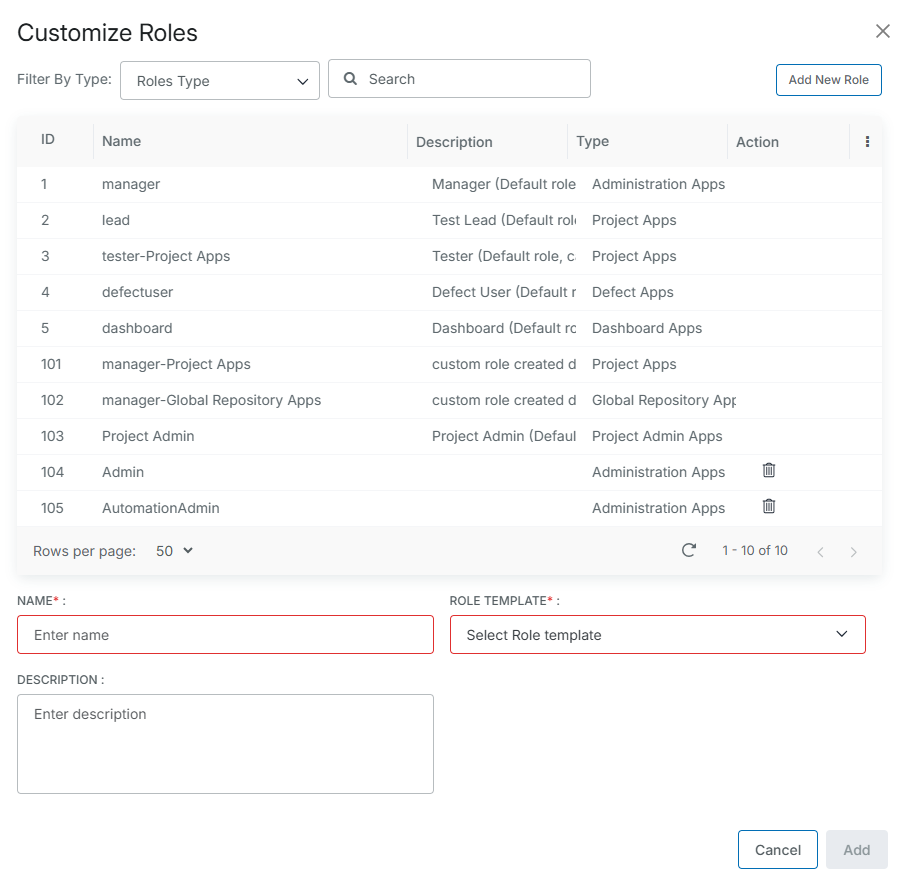
Search roles
You can filter roles by Role Template or search using keywords.
The pagination on the Roles screen helps you navigate large lists of roles.
Configure role permission options
When defining role permissions, you can select specific actions to allow for each application. By controlling these permissions, you prevent unauthorized users from performing unwanted actions on application content.
Some roles for Project Apps and Global Repository Apps include read-only permission by default.
Read-only users cannot:
Use grid view buttons (Add/Import/Clone/Delete/Edit/Map/Reorder cases).
Use folder operations (Add/Edit/Delete/Sync/Import).
Edit or perform actions with test case versions. (They can view different test case versions.)
Read-only users can:
Use the export function for the folders, the test cases in the grid view, and the test cases in the detail view for the test repository or global test repository.
Administration Apps
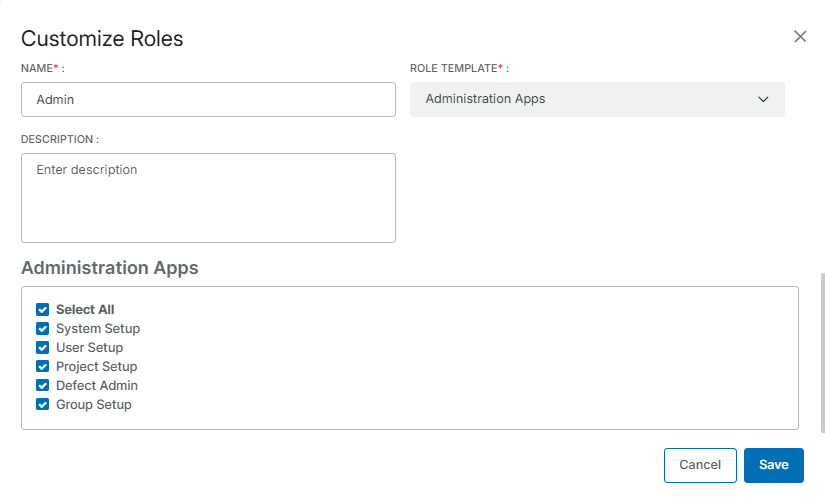
Administration Apps grant users access to manage system configuration, users, projects, defects, and groups.
Permission | Description |
|---|---|
System Setup | Configures global system settings, email notifications, and integration options. |
User Setup | Creates and manages user accounts, assign roles, and configure user properties. |
Project Setup | Creates projects, configure project settings, and manage project-level integrations. |
Defect Admin | Manages defect statuses, priorities, and custom defect fields. |
Group Setup | Creates and manages user groups and assign users to groups. |
Select All | Grants access to all Administration Apps at once. |
To grant administrative permissions to a new role or an existing role for the Administration Apps Role Template, do the following:
On the Customize Roles screen, select the Administration Apps as Role Template.
Select the checkbox next to each Administration Apps you want to include in the role.
To grant access to all Administration Apps, select Select All.
Click Save to save the role permissions.
Granular roles and permissions
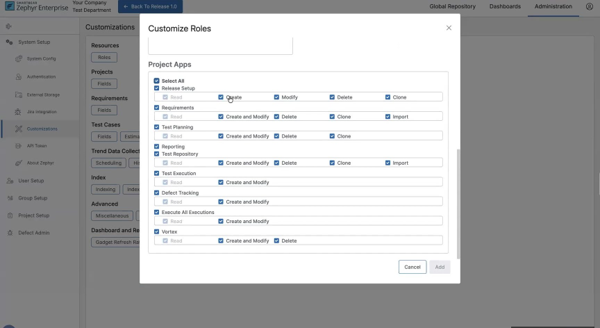
Granular permissions control user access across functional areas. Some permissions depend on related permissions and cannot be assigned independently. You can configure all permissions on the Customize Roles screen in the Project Apps section.
Permission dependencies
Permissions are role-based controls that determine what users can do in each functional area. Some permissions are parent permissions. Other permissions depend on these to function.
Note
All permissions include View access to their respective modules by default.
Release Setup
Permission | Description | Dependencies |
|---|---|---|
Create | Creates releases. | Parent permission |
Clone | Clones existing releases. | Requires Create to function |
Modify | Edits and updates release details. | Independent permission |
Delete | Deletes releases. | Independent permission |
Requirements
Permission | Description | Dependencies |
|---|---|---|
Create and Modify | Creates and edits requirements. | Parent permission |
Clone | Clones existing requirements. | Requires Create and Modify |
Import | Imports requirements from Excel and Jira. | Requires Create and Modify |
Delete | Deletes requirements and requirement folders. | Independent permission |
Test Planning
Permission | Description | Dependencies |
|---|---|---|
Create and Modify | Creates and manages cycles, phases, and test assignments. | Parent permission |
Clone | Clones existing cycles, phases, and test assignments. | Requires Create and Modify |
Delete | Deletes cycles, phases, and assigned test cases. | Independent permission |
Test Repository
Permission | Description | Dependencies |
|---|---|---|
Create and Modify | Creates and modifies test repository assets. | Parent permission |
Delete | Deletes test repository assets. | Independent permission |
Clone | Clones existing test repository assets. | Requires Create and Modify |
Import | Imports assets into a test repository. | Requires Create and Modify |
Test Execution
Permission | Description | Dependencies |
|---|---|---|
Create and Modify | Executes tests, updates execution details, synchronizes executions, and manages assignments. | Required for basic test execution operations |
Defect Tracking
Permission | Description | Dependencies |
|---|---|---|
Create and Modify | Creates, edits, and manages defects. | Required for basic operations and defect management |
Execute All Executions
Permission | Description | Dependencies |
|---|---|---|
Create and Modify | Executes tests and updates execution details. | Required for basic operations |
Note
My Execution and All Execution tabs each require separate Read access to be visible.
Vortex
Permission | Description | Dependencies |
|---|---|---|
Create and Modify | Creates, modifies, and executes automation jobs. | Required for basic operations |
Delete | Deletes the job from Vortex. | Independent permission |
Assign granular permissions to a role
Granular permissions provide fine-grained control over what users can do within specific applications. Configure granular permissions to restrict or enable specific actions for each application in the Project Apps section.
To assign granular permissions to a role, do the following:
Go to Administration, select Customizations, and then select Roles.
You can assign granular permissions to existing roles or new roles.
Select the Project Apps template to which you want to assign permissions.
In the Project Apps section, locate the module for which you want to set permissions.
Select the checkbox for each permission. When you select a dependent permission, its required permissions are automatically selected. When you remove a required permission, any dependent permissions are also removed.
Click Add to save the role.
Project Admin role
The Project Admin role is a default, system-defined role in Zephyr Enterprise. This role supports administrative activities at the project level. It is intended for users responsible for managing specific projects in Zephyr Enterprise and is applicable to users with full administrative permissions.
Note
Only users with the Global Admin or Test Manager role can assign the Project Admin role to other users.
Project Admin roles and responsibilities
Project Admins cannot create or delete projects. Their permissions are limited to the specific projects they have been assigned. The following table outlines the roles and responsibilities of a Project Admin.
Roles | Description |
|---|---|
User and Group Management |
|
Delegation | Assign the Project Admin role to other users for the same project. |
Jira Integration Management | Modify or remove Jira connections associated with the project. |
Project Configuration |
|
Security and access controls
The Project Admin role restricts user access to assigned projects only, preventing unauthorized access to other projects. Project Admins cannot access:
Global configuration settings
System-level project creation or deletion tools
Permissions and access outside the scope of assigned projects