Zephyr Enterprise Feature Content
Create BDD scenarios
If you installed the Jira Integration: Zephyr Enterprise app into a Jira Server/Data Center instance, you can create BDD scenarios after configuring Jira integration. To create BDD scenarios, perform the following steps:
Create a Jira requirement that you will work with.
Import Requirements From Jira that Jira issue as a requirement in the release folder using Jira sync, or move the Imported folder to the release folder to any existing requirement in Zephyr Enterprise.
Turn on the Zephyr Enterprise Feature Content toggle.
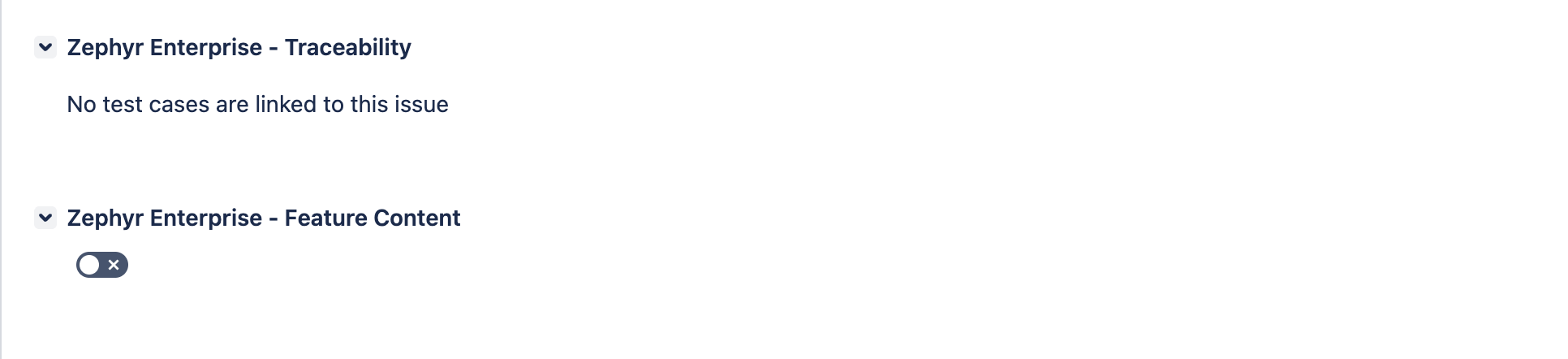
Select the Project and Release from the list.
The scenario editor appears under Zephyr Enterprise – Feature Content. You can now create BDD scenarios.
Add the scenario name in the Feature Content editor.
Click the Settings icon next to the scenario if custom fields are mandatory.
Note
Enter values for all mandatory fields when you create BDD scenarios. The scenario creation fails if the required properties are missing.

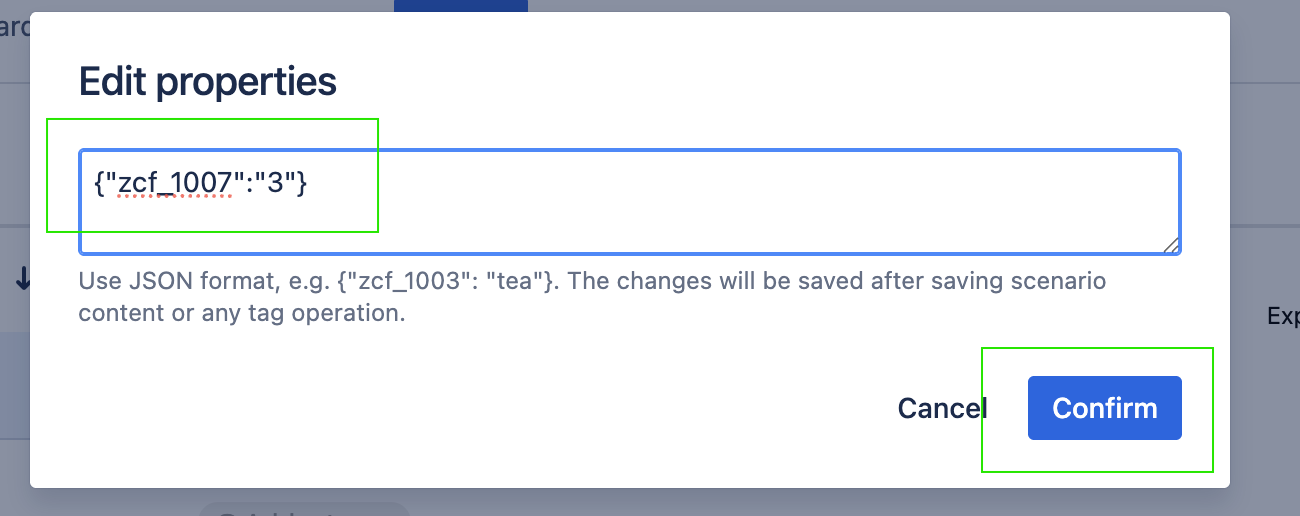
The Edit Properties dialog box appears with a text box to enter custom field values.
Enter the mandatory custom field values in JSON format. Use the custom field ID and the corresponding value.
Example
{
  "zcf_1005": "Textcf",
  "zcf_1012": 409,
  "zcf_1007": 3,
  "zcf_1008": "Rel1/Pro1",
  "zcf_1009": 3,
  "zcf_1010": 3
}
Click Confirm.
Save the scenario by clicking the check mark.
The test case is created with the mandatory custom field values.
Note
An error message appears if you save the scenario without mandatory custom field values.
To update mandatory custom field values, click the Settings icon, update the values, and click Confirm.
Save the scenario content or perform a tag operation to save the changes.
The updated custom field values appear in the test case.
Example
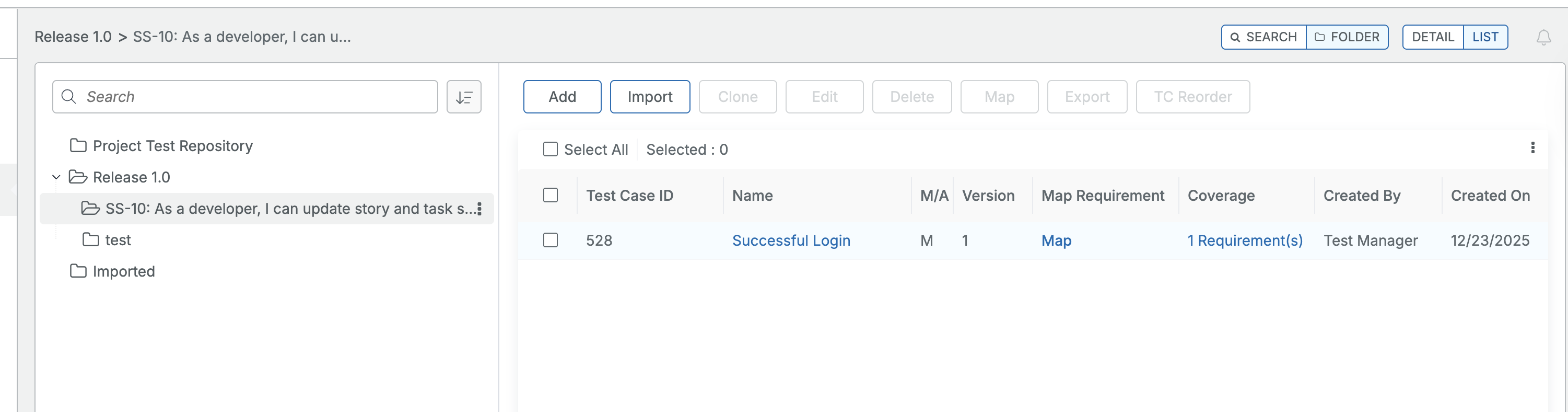
The BDD scenario "Scenario: TC-528 (V1) Successful Login" is created. Here, "TC-528" is the test case ID. "V" indicates the version of the test case within the selected project and release.
You can view the test case in each release and project by selecting the relevant release and project.
The created scenarios as per the selected project and the release appear under the Test Repository folder as <Jira-ID: <summary>.
Note
The Feature Content functionality is only available for Jira Server (On-Premise).
In the feature editor, you can find support for features:
Tags
Comments
Data Tables
DocStrings
Important
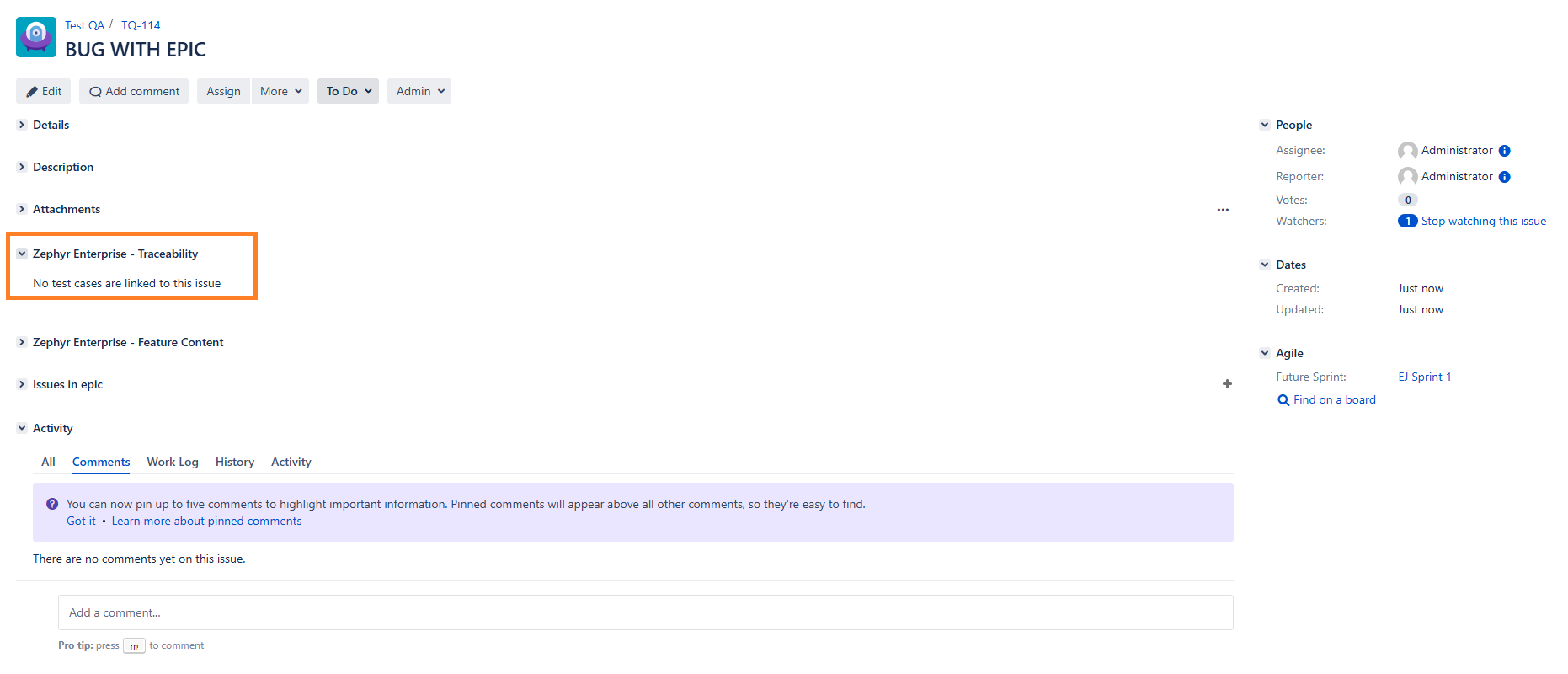
If Zephyr Enterprise is not visible, open it by clicking the ellipsis button at the top, then select Zephyr Enterprise from the dropdown list.
See Also