Migrating From Jira Server to Jira Cloud
When migrating from Jira Server to Jira Cloud, follow the recommendations below.
Important
Do not delete the existing Jira integration in Zephyr. Instead, update the settings to point to the new Jira Cloud instance. Deleting the integration will result in the loss of all mappings and links.
Do not create a new Jira integration in Zephyr using a Jira Cloud URL.
Migration Steps
Perform the following steps to migrate from Jira Data Center to Jira Cloud:
Log in to Zephyr using Test Manager credentials.
Navigate to Administration and select Jira Integration.
Click the Edit Connection icon for the existing Jira Server/DC connection that you want to migrate to Jira Cloud.
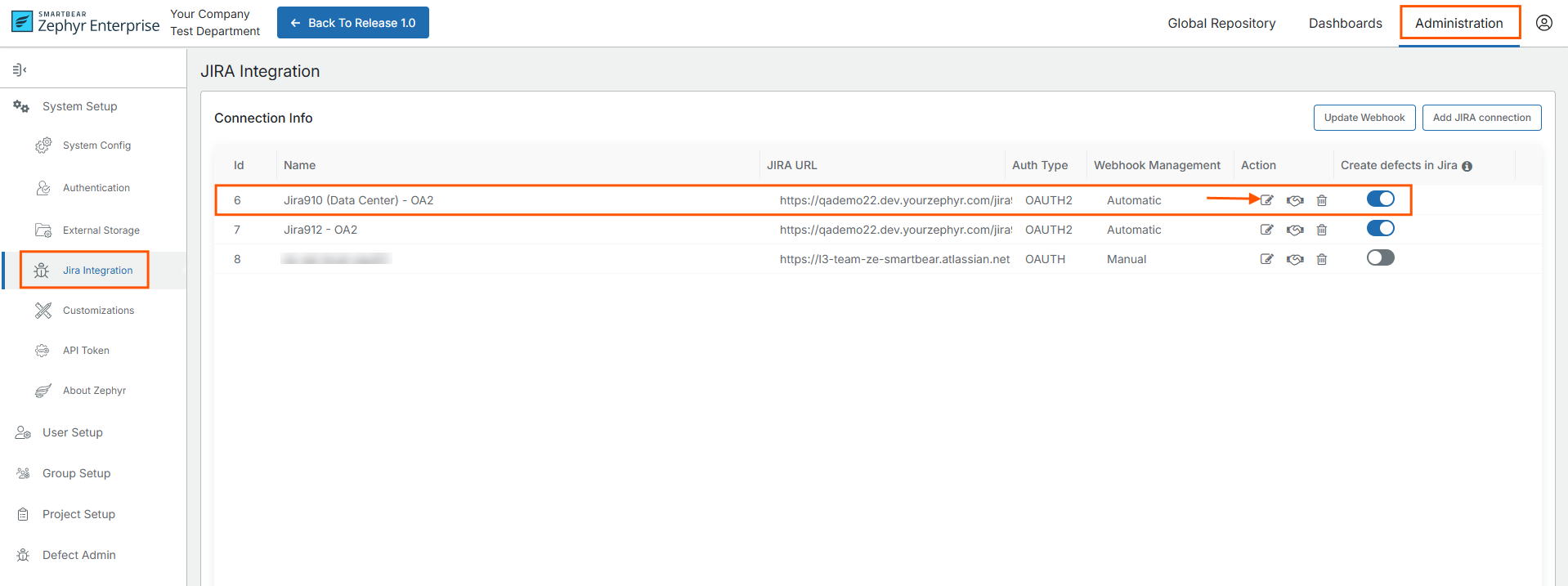
Provide the authentication details for Jira Cloud.
Note
Prerequisites:
Consumer Key Name configured in Jira
jira_privatekey.pcks8 file
For detailed steps, see: Configure OAuth Connection
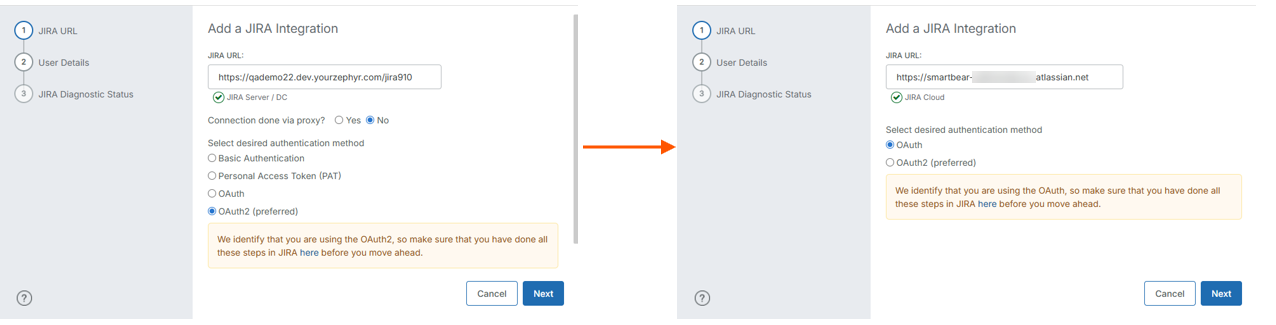
Jira URL. Enter the Jira Cloud URL and select OAuth for the Jira Cloud connection.
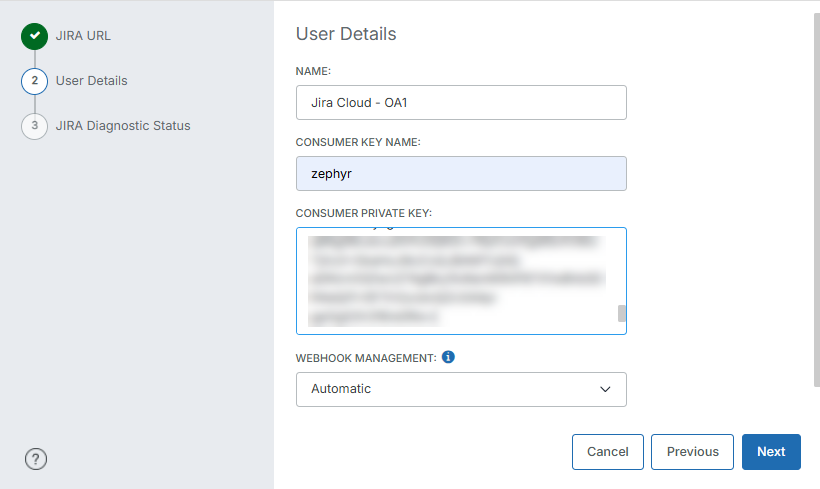
User Details. Enter Connection Name, Consumer Key Name, Private Key, and select the Webhook Management Type as needed.
Click Next.
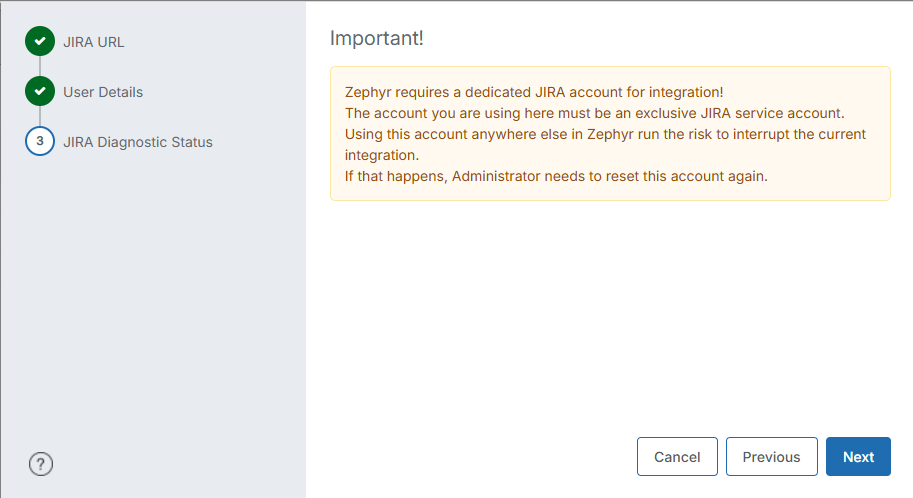
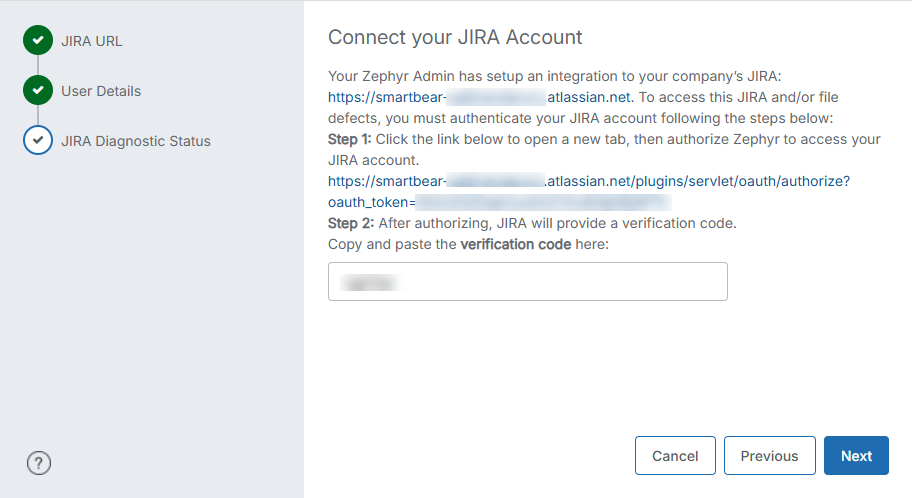
Read the important information on the screen and click Next.
Access the provided authorization link, enter the verification code, and click Next.
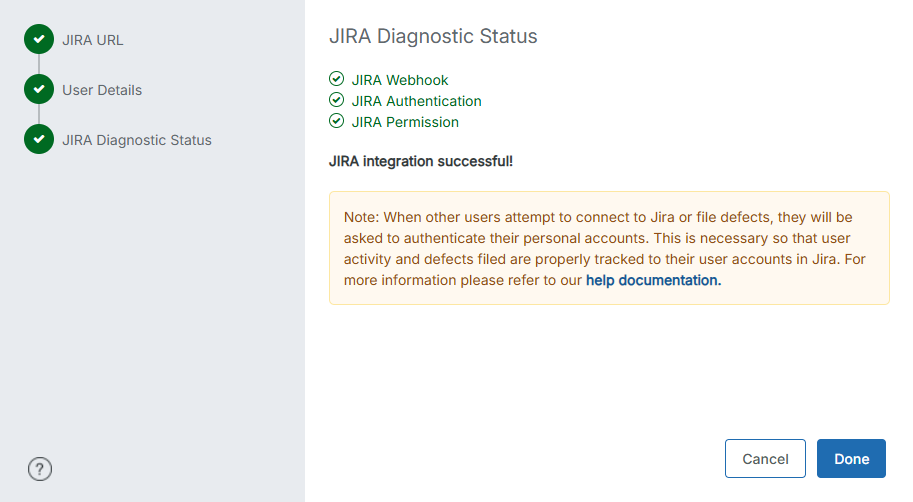
The Jira Diagnostic Status page displays a success message upon completion of all three integration steps.
Read the Note on the page carefully and click Done.
The existing Jira integration is updated with the new Jira Cloud details and is highlighted in red.
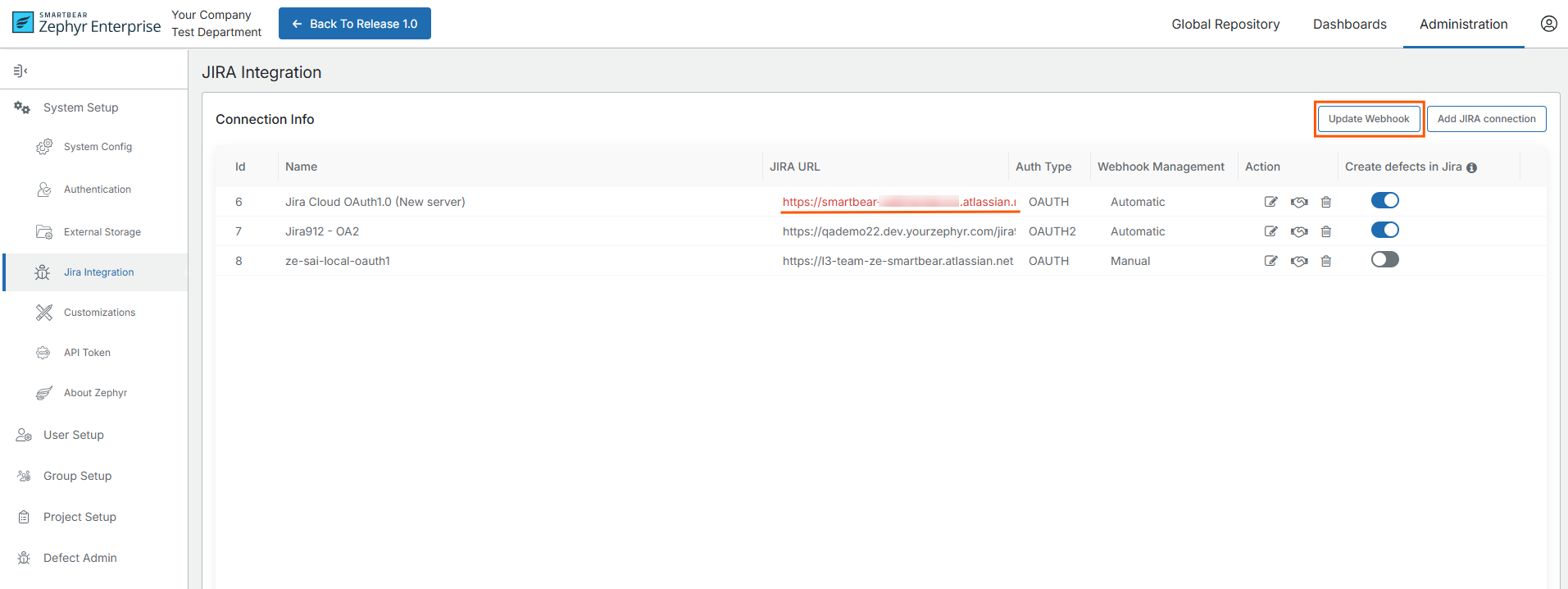
After connecting to the new Jira instance, click Update Webhook to recreate the required webhooks.
Note
Before clicking Update Webhook, ensure that all existing Zephyr projects are mapped to Jira Cloud projects using the same project keys as in Jira Server/Data Center.
Example: If a project key is defined as
PRJin Jira Data Center, it must also be configured asPRJin Jira Cloud.