Reports
Overview and Reporting Options
Zephyr offers multiple built-in reporting options that allow your users to track the progress and trends across all your testing activities. Please review the sections below for each individual gadget.
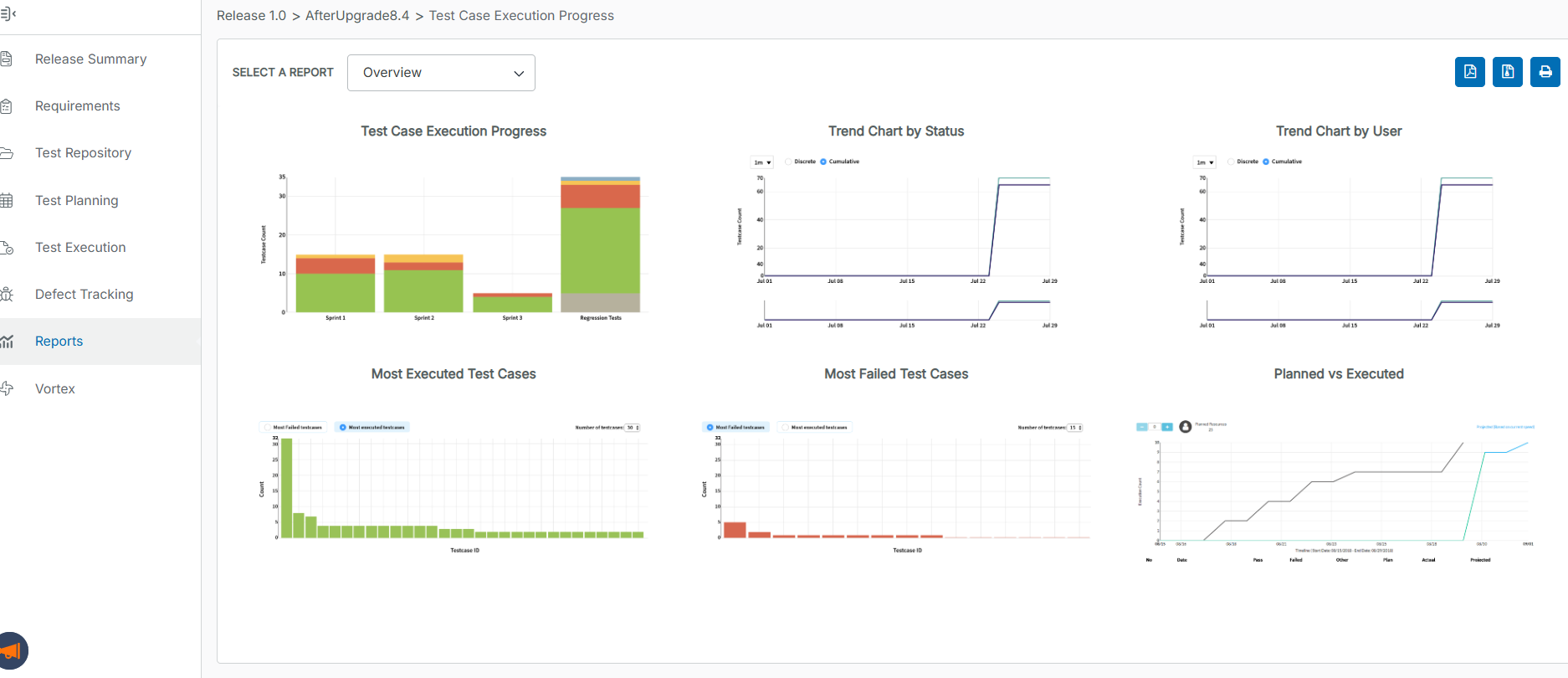
Test Case Execution Progress
The user is able to view the visual representation of the test case executions and the progress of those executions.
The chart displays the execution progress across all the cycles in a particular release.
There is additional information below the chart that breaks down the execution progress per cycle.
The chart displays the status of all the executions for all cycles in the particular release.
Users have the ability to filter the chart by the status of the executions. Use the right side of the chart to filter and the following default status filters are:
Not Executed
Pass
Fail
WIP
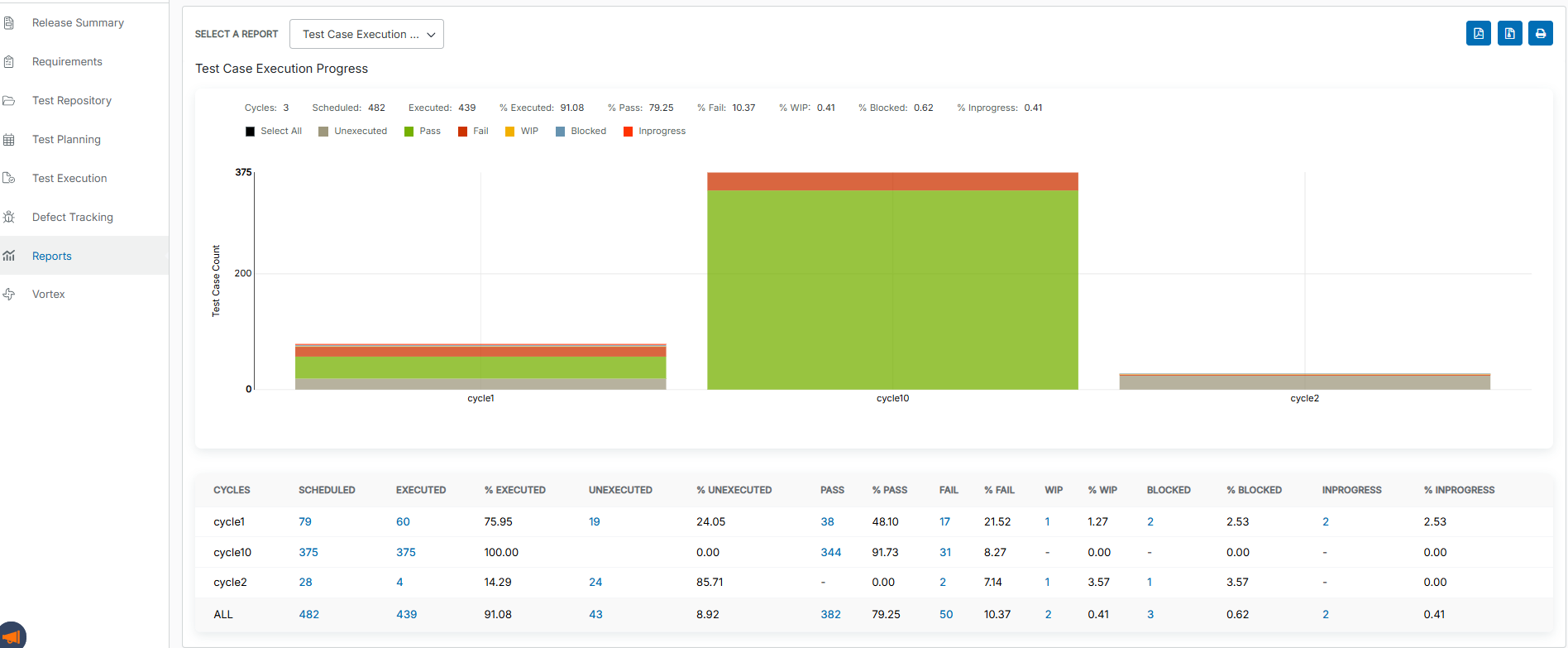
Users are able to interact with both the chart and table to view further information to be able to spot trends or analyze the performance for the particular release. Clicking values in the All row opens a list of corresponding test cases.
If the x-axis label is Unallocated when drilling down your chart, this means the chart can no longer be drill-downed:
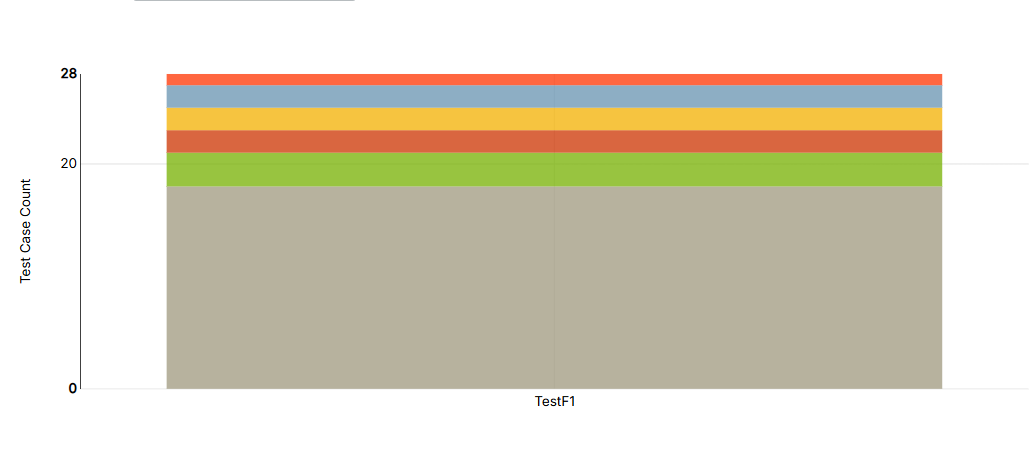 |
Trend Chart by Status
The user is able to view the visual representation of the test case executions sorted/filtered by the status of those executions.
The chart displays test case executions by status in a particular release.
Users have the ability to filter the chart by the status of the executions. Use the right side of the chart to filter and the following default status filters are:
Pass
Fail
WIP
Blocked
Predicted Fail
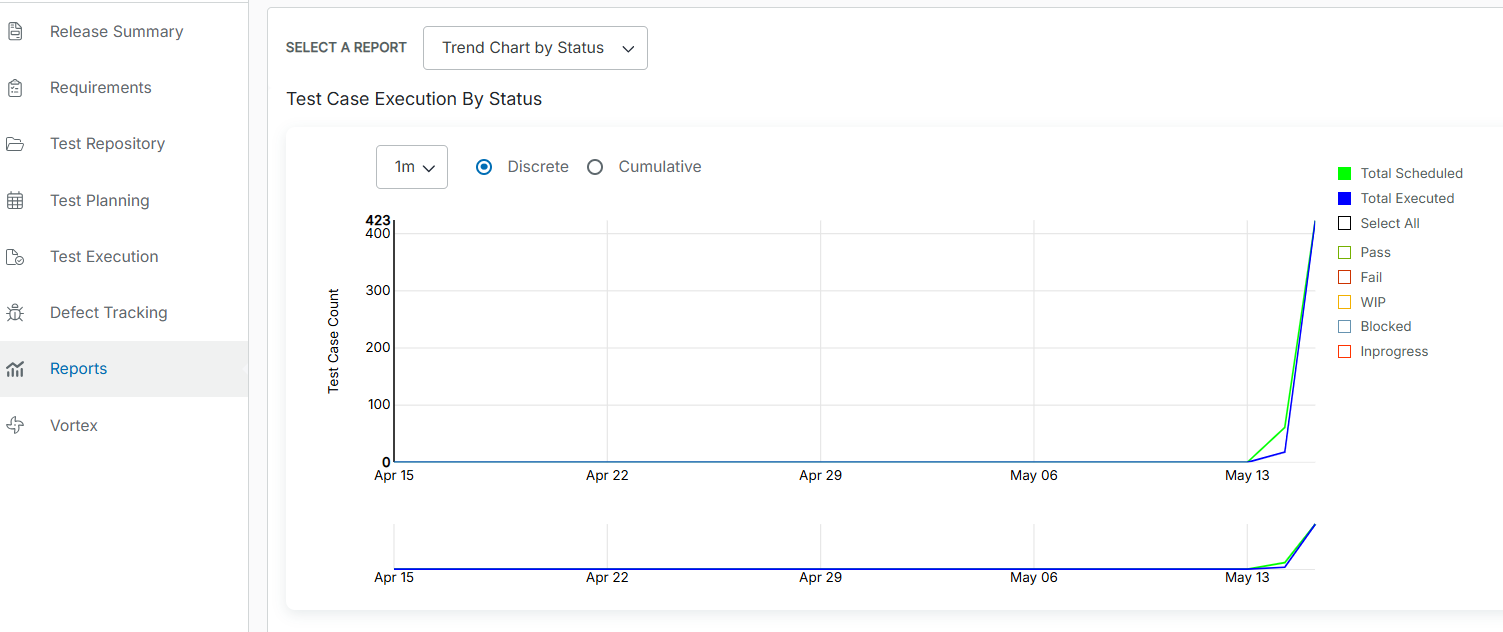
Users are also able to highlight their mouse over the lines on the graph to view further information on the test case executions.
When a user highlights over the line, the chart displays the status count of test executions on that particular date.
Trend Chart by User
The user is able to view the visual representation of the test case executions sorted/filtered by the users of those executions.
The chart displays test case executions by users in a particular release.
Users have the ability to filter the chart by the users of the executions. Use the right side of the chart to filter the users. The users will vary on the active users assigned to the project.
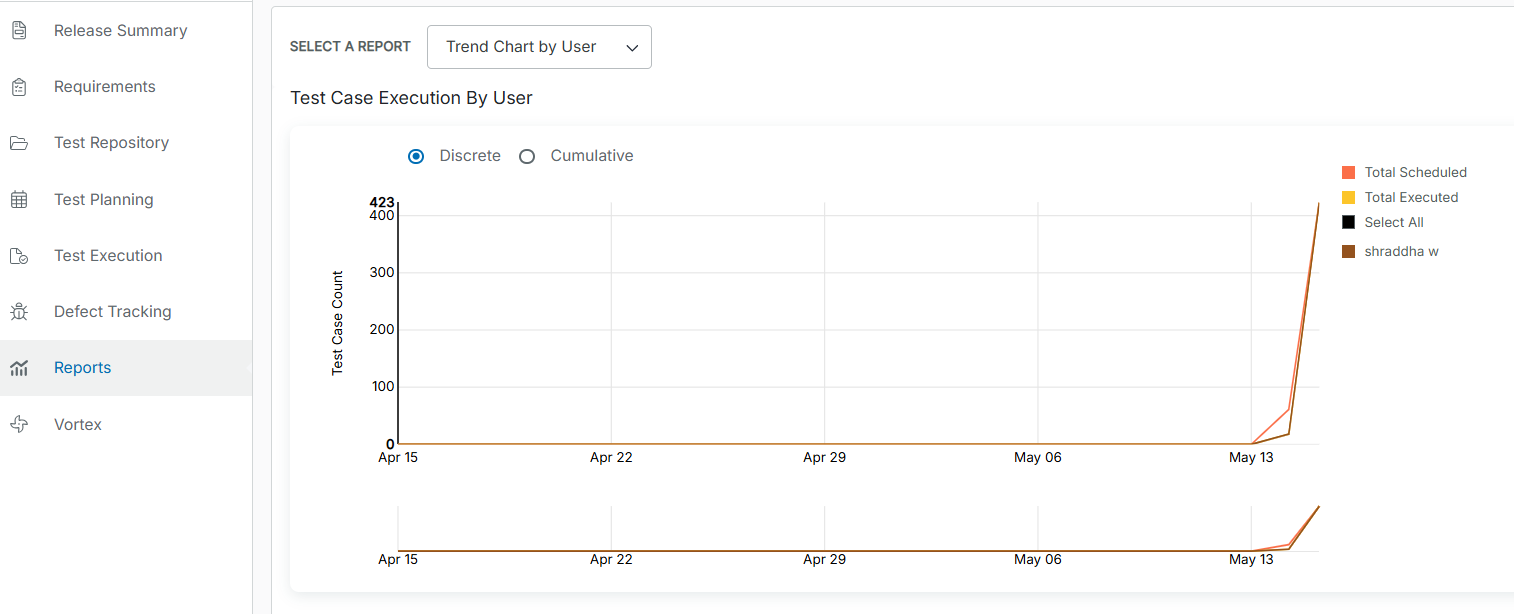
Users are also able to highlight their mouse over the lines on the graph to view further information on the test case executions.
When a user highlights over the line, the chart displays the count of test executions sorted by users on that particular date.
Most Executed Test Cases
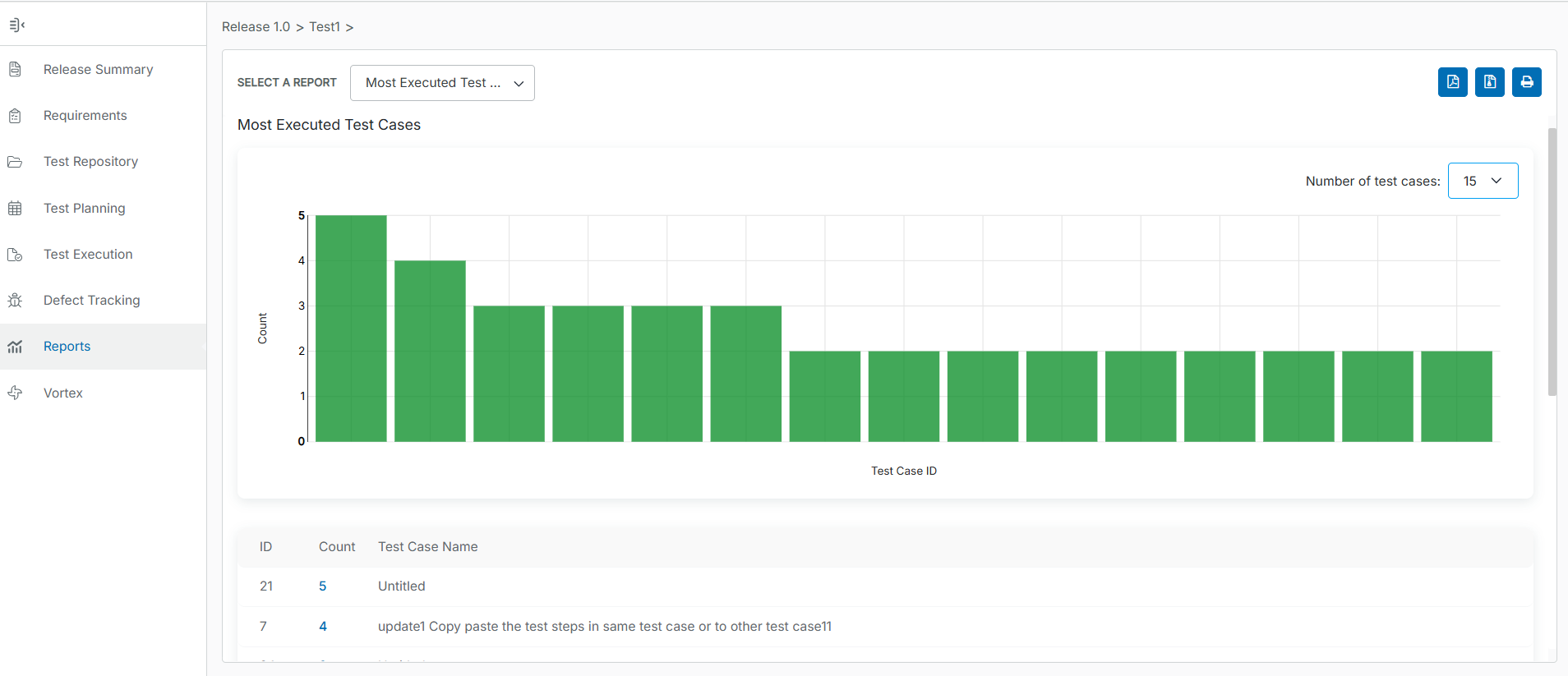
The user is able to view the visual representation of the test case executions that are executed the most.
Displays the test cases that have been executed the most based on their execution history across testing cycles in the release.
For example: Within each test cycle, there may be some test cases that users tend to execute multiple times (repeating test cases across cycles) or test cases that take a significant amount of time to execute (lengthy execution times).
Users can utilize this information to further improve future releases by determining to automate these test cases.
Users are able to analyze and improvise their current process to be able to meet their plans.
Most Failed Test Cases
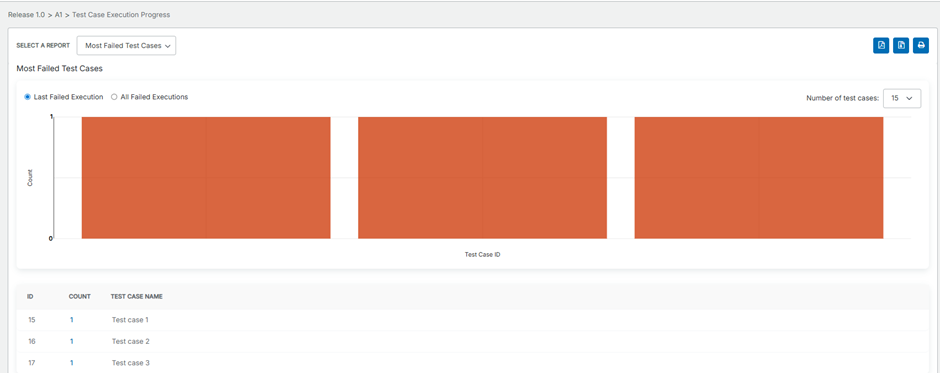
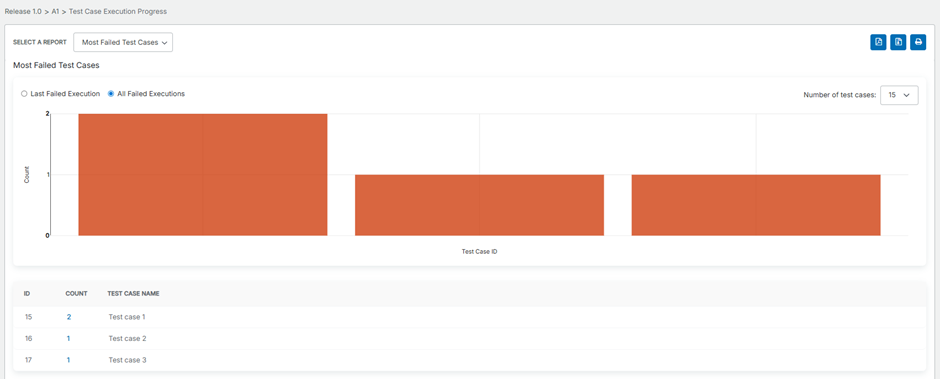
View a visual representation of test cases with the highest number of failures. This report highlights test cases that fail most frequently across testing cycles within a release, including cases that fail repeatedly across multiple cycles, helping you identify patterns and use this information to prioritize fixes, improve test stability, and enhance future releases.
For example, some test cases may fail repeatedly across multiple cycles. This report helps identify such patterns.
Use this information to prioritize fixes, improve test stability, and enhance future releases.
To view the Most Failed Test Cases report, select any of the following two options:
Last Failed Execution
The Last Failed Execution option displays the most recent failed status for each test case, regardless of the test case version. The report displays the number of test cases that failed across different cycles based on their latest execution.
All Failed Executions
The All Failed Executions option displays the historical count of failures for each test case. If a test case fails multiple times, this option displays the total number of failures.
Planned vs. Actual
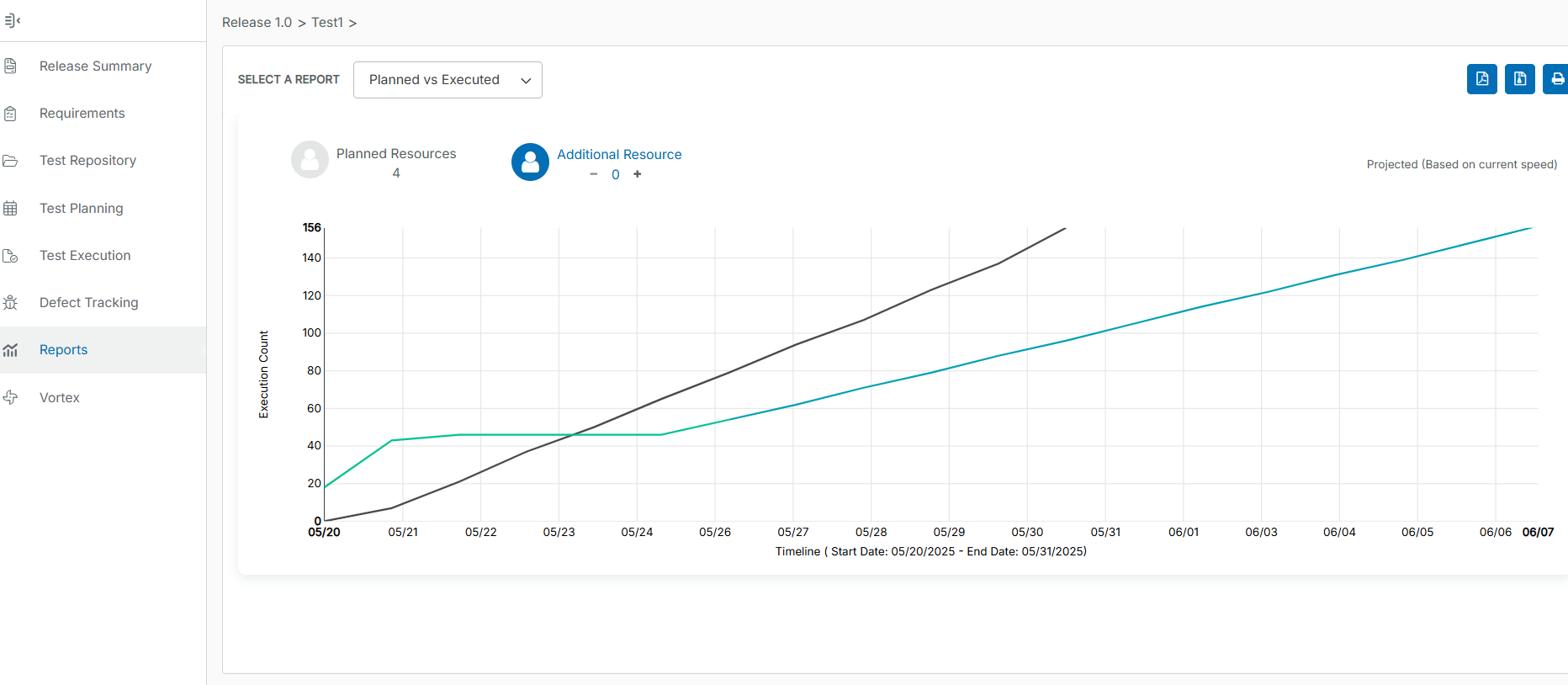
The Plan vs. Actual Execution is a widget that shows the current execution plan, the actual execution progress, and what it takes to catch up with the test plan.
Planned: The plan will display the actual count of test cases assigned to all the users within that release.
Actual: The actual count will show the number of test cases executed until the current day (today's date).
Projected: The projected will show how many test cases can be executed, using the same planned resources. This is displayed at the end of the timeline.
Predicted: The prediction will display and predict the number of executions per person that can be done per day based on the previous execution history.
Based on the predicted capacity of 104 executions per person a day.
 |
Exporting to Reports
As of now, only the Testcase Execution Progress, Most Executed Test Cases, Most Failed Test Cases, and Planned vs Actual Execution metric have the option to export via PDF, ZIP, or Printable format.
To export to a PDF, simply click on the
 icon at the top right of the interface.
To export to a ZIP, simply click on the
 icon at the top right of the interface.
To export to a Printable format, simply click on the
 icon at the top right of the interface.